Letting AI drive Premiere directly: notes on setting up the Premiere MCP
Also in: Bahasa Indonesia · हिन्दी · العربية · ไทย
I connected the Claude desktop app and a Premiere MCP so AI could operate my PC and Premiere directly, and worked through the installation traps and port fights one by one.
This connection is what made the work in parts 1 and 2 possible.
What I connected, and how
If the AI could only give instructions and I had to do everything by hand, I couldn't have handled this volume.
| Connection | What the AI does |
|---|---|
| Claude desktop app + remote access | Even when I chat from my phone or the office, the work runs on my home PC |
| Files and command line | Lists drives, checks copy results, pulls capture times and audio with ffmpeg, runs Python scripts |
| Screen control | Clicks through 7-Zip, Premiere and Media Encoder |
| Premiere MCP | Builds sequences and caption tracks and saves the project through a bridge panel inside Premiere |
| Media Encoder | Exports the per-day sequences as MP3 for transcription |
Screen control had its limits. In File Explorer it could click, but copy, paste and drag-and-drop were blocked, so devices without a drive letter, like my phone, I had to move myself.
The Premiere MCP
MCP is a way of connecting AI to other programs so it can use them as tools. For Premiere I use Adobe-Premiere-Pro-MCP, published on GitHub. An "MCP Bridge" extension panel attaches to Premiere, and a small server runs on the PC (port 8097) passing the AI's commands to Premiere as scripts (ExtendScript).
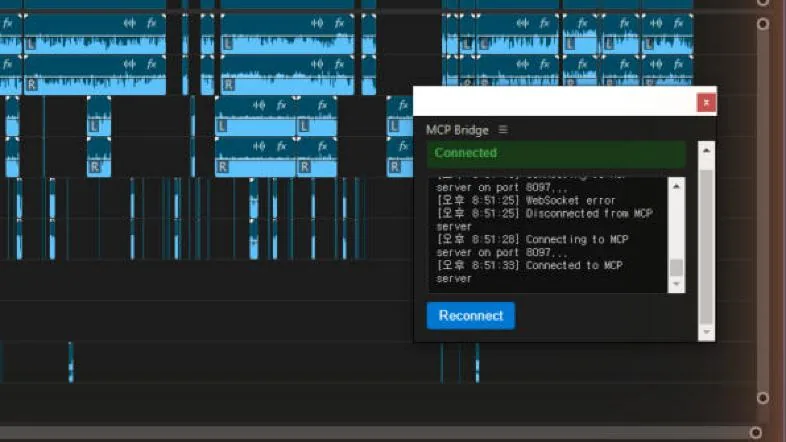 The MCP Bridge panel. The green Connected has to show before AI commands reach Premiere.
I first installed it in early September, while working on the video shown before our wedding ceremony. I thought running the installer would be enough, but there were plenty of traps. In October I put the same thing on my work PC, and the company network added one more problem.
| Symptom | Cause | Fix |
|---|---|---|
| The Claude app never starts the server | The Microsoft Store version of the app reads its config file from a different path | Register it at the real path (under LocalCache) |
| Settings silently ignored | The install script puts a BOM (an invisible character) at the start of the config file | Save it again without the BOM |
| Server fails to start | The config just says node, and the app can't find it | Use the full path to node.exe |
| Panel says Connected but commands do nothing | Each chat window starts its own server, and they fight over the one port | Clean up leftover server processes and reconnect |
| Keyboard dead in Premiere | The bridge panel grabs keyboard input | Close the panel when editing by hand |
| Install fails on the work PC | Node doesn't trust the certificate of the company's security appliance | An option that makes Node use the Windows certificate store |
Installation steps
This is the order I settled on after getting stuck several times. It works for installing on another PC too.
| Step | Where | What to do |
|---|---|---|
| 1 | PowerShell | Check Node.js is installed. If not, install it and open a new window |
| 2 | Browser | Download Adobe-Premiere-Pro-MCP from GitHub as a ZIP and unzip it into Documents. Moving it later breaks the Premiere extension link, so put it in its final location from the start |
| 3 | Notepad | Open install.bat and read it first. If it does anything unfamiliar beyond registry settings, linking the extension folder, installing and building packages, and writing settings, stop |
| 4 | PowerShell | Run install.bat and check the server file (dist\server.js) was created |
| 5 | Premiere | Quit completely, restart, open Window > Extensions > MCP Bridge |
| 6 | Claude app | Launch once and quit, so it creates its settings folder |
| 7 | PowerShell | Register the server in the real config file path. Save without a BOM, use the full path for node |
| 8 | PowerShell | Quit the Claude app completely and launch it again. It reads settings only once, at startup |
| 9 | Premiere | Check the panel shows Connected |
| 10 | Claude app | In a new chat, check the connection status, and verify by having it only read the track layout without changing anything |
I also settled on a startup routine for everyday use.
| Order | What to do |
|---|---|
| 1 | Close other MCP programs and other Claude chat windows |
| 2 | If a leftover server is holding port 8097, clean it up |
| 3 | Launch Premiere, open the project and sequence |
| 4 | Launch the Claude app (the server starts automatically) |
| 5 | Check the bridge panel shows Connected, then work |
| 6 | Close the panel when editing by hand. The server stays up, so it reconnects as soon as you reopen it |
This weekend: the port fight and a bridge fix
The port fight broke out again this weekend. Every time I moved to a new chat window, the old window's server was still holding the port, so the panel said Connected while the commands vanished into thin air. At first I got by with a one-line PowerShell command that cleaned up leftover servers. But I had to repeat it every time I switched windows, which got tedious. So this time the AI changed the bridge code itself. A newly started server asks the old one to hand over the port, and the old one steps aside. It tested this with a local simulation before applying it. A new server asks for the port only during its first 15 seconds, and a server that has stepped aside waits quietly instead of trying to take it back. So normally the most recent chat window wins. The change went into both the build output and the original source, so it survives a rebuild. Even so, in the first session the connection never came up, so the sequences were made as XML files and imported through screen control. From the next session on, it used the MCP to add caption tracks and save the project.
In the next post I cover how I made subtitles for 62 hours of footage, and what I learned about running AI work efficiently.